Install guide

Install All Channels on your Fire Stick.

A few minutes, once. You only need the free Downloader app: no computer, no cable and no developer tools.

  1. Check your Fire TV

    All Channels needs a Fire TV running Fire OS 6 or later, such as a Fire TV Stick 4K or 4K Max. On your Fire TV, open the settings path below: it needs to say Fire OS 6 or higher.

    SettingsMy Fire TVAbout

    Amazon's newer Vega OS devices, such as the Fire TV Stick 4K Select, can only install apps from the Amazon Appstore, so All Channels can't run on them.
  2. Install Downloader

    From the Fire TV home screen, choose the search icon, look for Downloader (a free app made by AFTVnews), and select Get. Open it once it has installed.

  3. Let Downloader install apps

    Fire TV only installs apps from outside the Appstore if you allow it, and on Fire OS 7 and later you allow it for Downloader alone. On Fire OS 6 the switch covers all apps, so switch it off again after installing.

    SettingsMy Fire TVDeveloper optionsInstall unknown appsDownloaderOn

    On older Fire OS the switch is called Apps from Unknown Sources. If there's no Developer options, open About and select your device's name seven times, then go back. You don't need ADB debugging; leave it off.

  4. Enter your address and install

    Open Downloader and select the URL box. Type the short personal address you were given when you bought All Channels, then press Go. When the download finishes, select Install.

    Your address looks like this
    allchannels.app/d/your-code

    Once it says App Installed, select Done, then Delete to remove the downloaded file and keep your Fire Stick's limited storage tidy. This doesn't uninstall the app. You can switch Downloader's install permission off again now.

  5. Add your provider from your phone

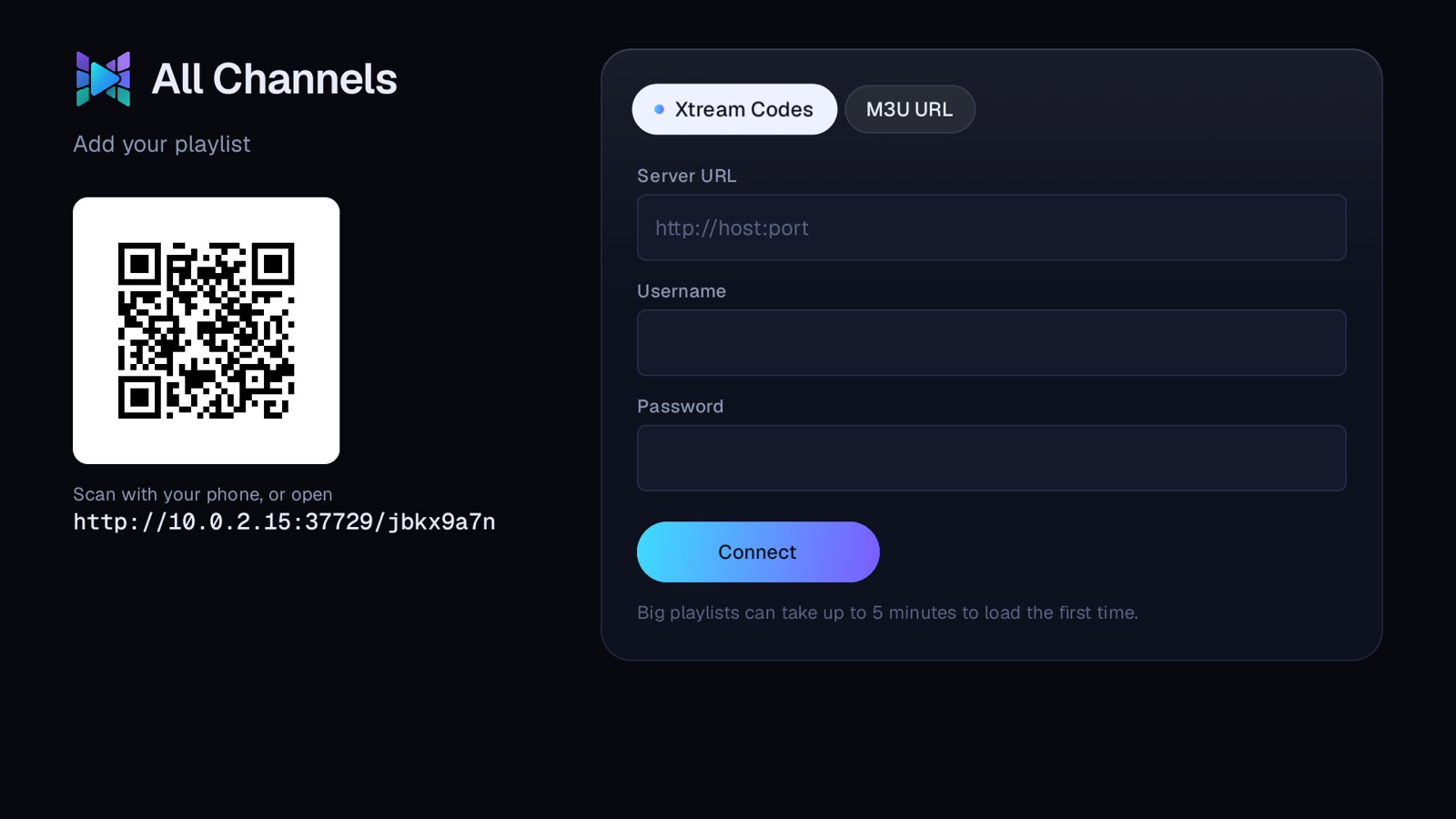
    Open All Channels from your apps. Scan the QR code on the screen with your phone's camera, then enter your provider's Xtream Codes login or M3U link on your phone's keyboard. Prefer the remote? You can type it on the TV instead.

    The All Channels setup screen with a QR code and a login form.

Keep this guide on your phone

Scan the code to open this page on your phone while you work through the steps on your TV.

QR code that opens allchannels.app/get

Afterwards

Updating, and when things go wrong.

How do I update?

Install the new version the same way as in step 4. It normally replaces the old one and keeps your login, favourites, watch history and reminders. Don't uninstall first.

It says "App not installed"

The new version can't replace the All Channels already on your Fire Stick, usually because the two came from different sources. An older version won't install over a newer one either, so check you have the latest link.

As a last resort you can uninstall the old copy (long-press the app icon, then Uninstall). That deletes your login, favourites, history and settings for good, so you'd set up again.

I can't connect to my provider

Check the server address starts with http:// or https:// and includes the right port, and that your username and password have no stray spaces. If your internet provider blocks yours, try a VPN or switch on Encrypted DNS in Settings, Network.

A channel or film won't play

The player tells you why, for example that your subscription has ended, that too many devices are using the account, or that the channel is offline at the provider. A short technical line underneath is worth quoting to your provider.

Playback stutters

In Settings, raise the buffer size. If it's still poor, try with and without your VPN to see which side is the bottleneck.

Sales open soon

All Channels isn't on sale just yet. This guide is live, so you can see exactly how it works on a Fire Stick.